Animate Old Photos with AI
Old photographs hold one frozen second: a wedding guest mid-laugh, a grandfather squinting into the sun, a child who is now a grandparent. Animating that second won’t tell you what happened next, but a slight turn of the head, a blink and a slow drift of the camera can make a familiar picture feel present again. Upload a scan, choose a gentle motion, and you get a short MP4 to share with the family.
Examples
Each clip starts from a single photo. Click Play on a picture to watch it. The caption is the title and the prompt.
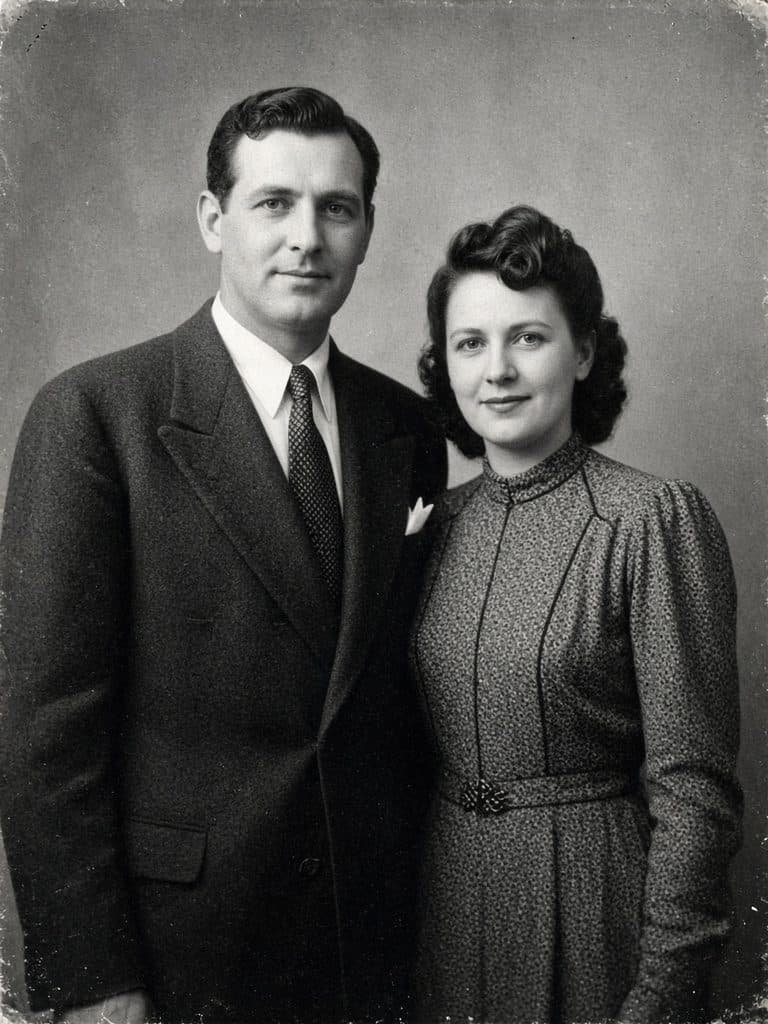
Vintage Couple Smile“They turn slightly toward each other and smile, natural blinks, the photograph stays strictly black and white with film grain and paper texture, slow camera push-in, modest and tasteful archival motion, no colorization, no text, no logos, no watermark” 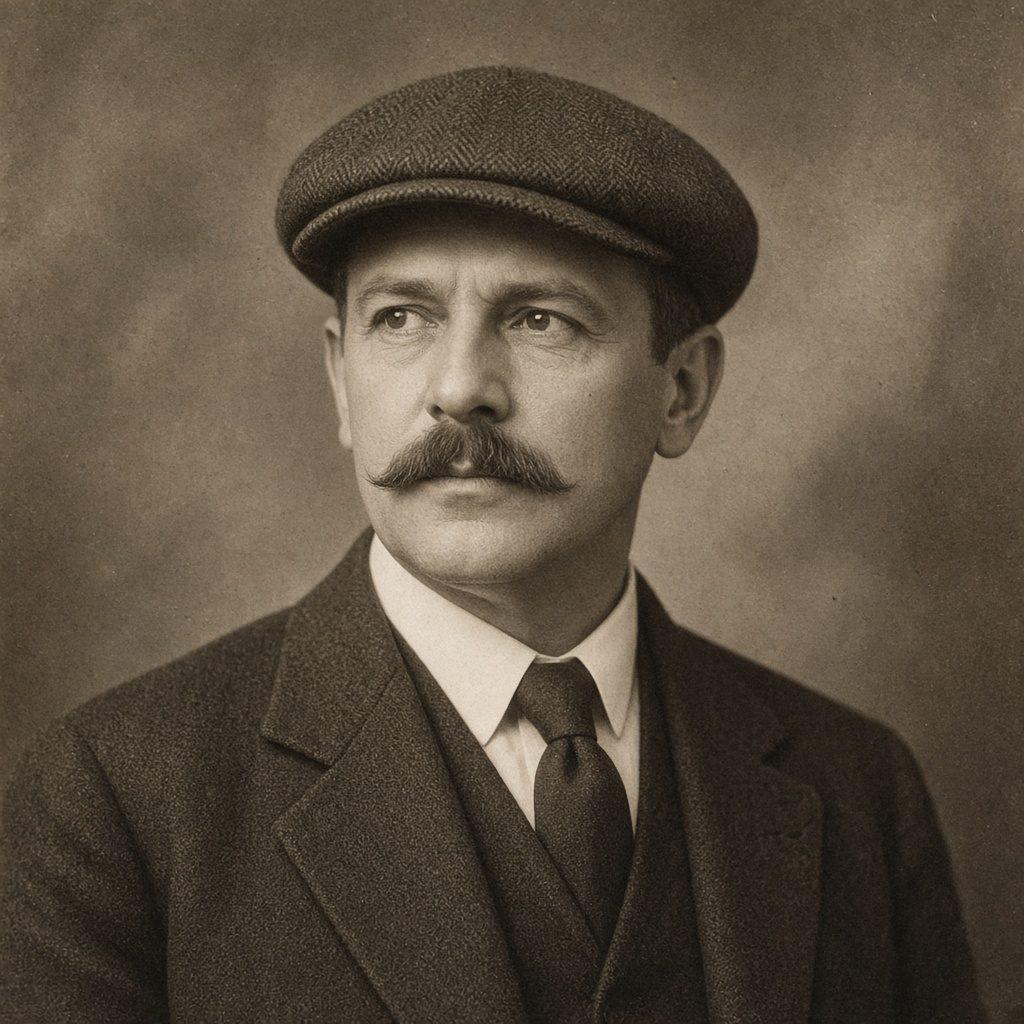
Sepia Portrait Motion“Subtle head tilt, a natural blink, a slight smile forms, the portrait stays strictly sepia-toned with film grain and paper texture, almost static camera, modest and tasteful archival motion, no color shift, no text, no logos, no watermark”
What the animation actually does
The model treats your scan as the first frame of a short clip and predicts a few seconds of plausible movement from it. It does not restore, colorize or sharpen the picture: a black and white print usually stays black and white, and the grain stays too. What changes is motion. Eyelids close and open, the head tilts a little, hair or fabric may shift, and the camera can ease in. Because the model is guessing, the person in the clip is an interpretation of the photo, not a recording of them. Kept subtle, that interpretation usually stays faithful; pushed further, the face starts to drift.
Before you upload
A better scan does more for the result than a clever prompt.
- Scan or photograph the print straight on. A tilted phone shot turns a rectangle into a trapezoid, and the model will animate the distortion along with the people.
- Avoid glare. Glossy prints reflect lamps and windows. Use a flatbed scanner, or shoot the print lying flat in open shade.
- Scan at 300 dpi or more. Small prints need the extra pixels so faces are not soft. Anything wider or taller than 1920 pixels is scaled down before upload, so going much higher won’t help, but it won’t hurt either.
- Fix creases and tears first. A crack running through a face confuses the model. Retouch damage in a photo editor before you upload.
- Crop toward the people. If the face you care about is small in the frame, crop closer so it fills more of the image.
Photos that tend to fail
These scans come back looking unlike the person, even with a careful prompt. Fix the picture before you ask for more motion.
| Photo | Why it fails | What to do instead |
|---|---|---|
| Several faces, similar in size | The model tries to animate every face, and small errors add up across the group. | Crop to the one person you care about, or keep every face still and move only the camera. |
| Face too small | A face that is a small part of the frame does not have enough pixels for stable eyes and a mouth. | Crop closer so the face fills much more of the picture. |
| Hands waving, pointing or holding something | Fingers are redrawn on every frame and often gain extras. | Ask for a blink or a slight head turn, and do not mention the hands. |
| Soft, tiny or heavily compressed scan | Missing detail is filled in with a guess, so the face drifts away from the print. | Rescan at 300 dpi or more, or photograph the print straight on without glare. |
| A crack, stain or bright reflection across the face | The damage is treated as part of the person and can crawl as the head moves. | Retouch it, or photograph the print again in open shade, before you upload. |
| A near-profile, or a face half in shadow | The hidden side has to be invented if the head turns at all. | Use a photo that already shows most of the face, and ask for a very small movement. |
What motion works for old photos
Stay with the small movements a person makes while holding still for a camera: a blink, a slight turn, a breath. A slow push-in adds life without asking the face to do more. Kling 2.5 Turbo Standard is a good default here, and the shortest length is usually enough.
Quiet portrait
The person blinks naturally and turns their head very slightly toward the camera, soft breathing, camera stays still, original photo look and grain preserved
The safest starting point for a single face.
Slow push-in
Slow, gentle camera push-in toward the face, the person stays almost still with one natural blink, no other movement
Lets the camera carry the motion, which suits fragile or low-detail scans.
Faint smile
A faint smile forms slowly, the eyes blink once, slight head tilt, static camera
Works best when the original expression is already relaxed.
Glance to the side
The person glances slightly to one side and back, one slow blink, shoulders and hands stay still, original grain and tones preserved
A small change of gaze reads as life without asking the head to turn far.
Breath and fabric
Soft breathing lifts the shoulders slightly, clothing shifts a little, the face stays calm with a single blink, static camera
Useful when the face is fragile and you would rather move the clothes than the features.
Still group, drifting camera
Everyone stays perfectly still while the camera drifts slowly sideways, no blinking, no smiles, the original photograph look preserved
The safer way to handle a group: move the view, not the people.
What to avoid
Big motion is where old-photo animations go wrong. Asking a portrait to wave, laugh, stand up or walk forces the model to invent parts of the body and face it has never seen, and the result stops looking like the person. In group shots, don’t try to animate everyone: describe one person’s movement, or let the camera move while everyone stays still. Skip photos where the face is tiny, out of focus or half in shadow, because the model will fill the missing detail with its own guess. And only upload pictures you have the right to use; with family photos, it is worth asking relatives before you share the result.
Your scan is ready and you know which motion to ask for. The generator takes it from here.
Back to the generatorQuestions about animating old photos
Does it work on black and white photos?
Yes. The model animates whatever is in the frame, and black and white scans usually stay black and white in the clip. It does not colorize photos. Sepia and faded prints work too, though very low contrast can make faces harder for the model to read, so a light contrast boost before upload can help.
How old can the photo be?
There is no age limit. What matters is condition and clarity, not the date. A sharp studio portrait from the 1920s can animate better than a blurry snapshot from the 1990s. If the face is visible, in focus and not crossed by cracks or stains, the photo is a reasonable candidate.
Will it change the person’s face?
It can. The model predicts new frames rather than copying the original, so every frame after the first is its interpretation. With subtle prompts, such as a blink or a slight head turn, faces usually stay close to the photo. Large movements, broad smiles from a neutral expression and strongly turned heads are where likeness tends to slip.
What resolution should I scan at?
Scan at 300 dpi or higher; for small prints, 600 dpi gives the face more pixels to work with. Save the scan as a JPG or PNG under 20 MB. Images are reduced to at most 1920 pixels on their longest side before they are sent, so scanning far beyond that adds no extra detail to the video.
Can I do a group photo?
Yes, but keep the motion modest. Animating several faces at once is where errors multiply, so either describe one person’s movement or keep everyone still and let the camera drift slowly. If one person matters most, cropping the photo around them usually gives a better result than animating the whole group.